

The first catalog pages arrive, and a gray product appears above the beige model’s code. Fixing the picture will not resolve the underlying problem: the sales spreadsheet, image folder and designer’s list no longer agree. Match the records before layout begins so you do not have to hunt for the same mistake across every page.
Catalog preparation gives the designer the information and images needed to represent each product accurately. Decide what belongs in the catalog, who can approve the facts and how changes will reach the design file. The six preparation steps below will help you arrive at the first design meeting with usable content. For paper, proofs and printer handoff, see the broader print design workflow.
1. Define the Use and Product Scope
Will sales representatives open the catalog during detailed conversations, will visitors pick it up at a trade show, or will you send it as a PDF? Write down what the reader needs to find. Showing the full range and helping someone choose the right series may require different page structures.
State the number of variants as well as the number of products. A variant is an option that differs in a property such as color or size. Twenty product families with six options each create a different information task from twenty individual items. Each option does not necessarily need its own page, but the designer needs to know which differences must remain visible.
Separate included products, discontinued models and new items whose information is incomplete. Specify language versions, an approximate format and when the catalog will be used. If you want prices or availability included, decide who will maintain them. A printed copy cannot update itself when the underlying information changes.
2. Build a Consistent Product and Variant Table
Replace scattered messages with a shared product table. Define whether a row represents a product or a specific variant, then keep that rule consistent. A column should not contain dimensions in some rows and materials in others. Treat identifiers as text when necessary to preserve leading zeros.
A stock keeping unit, or SKU, identifies a product or variant within the business. Shopify’s explanation of SKUs illustrates that purpose and distinguishes them from barcodes. Reuse the identifiers your business already maintains. The photography team and designer should not independently invent competing codes.
| Field | What to Prepare | Problem It Helps Prevent |
|---|---|---|
| Product and variant code | A distinct identifier for each record, with the shared series in a separate field | Confusing similar products |
| Name and short description | An approved name and concise explanation of its use | Inconsistent names for the same item |
| Dimensions and specifications | The field name, unit, value and person who verified it | Mixing product and package dimensions |
| Image file | A filename linked to the code, with a main-view or detail role | Placing the wrong picture |
| Status and version | Approved, incomplete or excluded, with an update date | Treating provisional data as final |
Do not leave dimensions as “24 × 10 × 9” without a unit or an explanation of the order. Give product width and package width different field names. If a value is unknown, mark it as awaiting verification rather than entering zero.
Adobe’s data-source structure uses rows for records and columns for fields. A consistent structure lets the product owner and designer refer to the same fields, even without automated import. Try a small sample in the agreed file format, including accented characters if they occur in your product names.
3. Match Original Images to Product Codes
A folder containing IMG_1042.jpg does not tell the designer which item it shows. Use an image index to connect the product code, filename, view and intended role. Retain the original files; a compressed messaging-app preview should not be your only source.
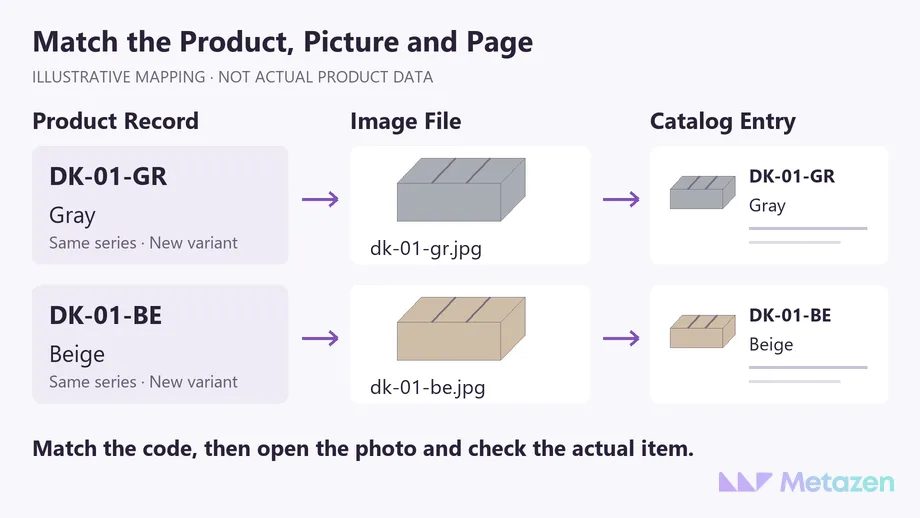
The example uses gray and beige versions of the same desktop organizer. Open each image and check the color, compartment count and shape against its record. Changing a filename does not correct a photograph of the wrong product.
Discuss the intended placement size with the designer. Adobe’s guidance on pixelated graphics explains how scaling an image can reduce its effective resolution. File size and extension alone cannot establish suitability. Assess the original image, its size in the layout and the production requirements together.
Do not quietly substitute a similar model for a missing product photo. A different color, component or material can misrepresent what the customer will receive. Record the missing shot. If an illustrative drawing is appropriate, agree how it will be used and identified.
4. Approve the Copy and Language Versions
Asking the designer to place unverified specifications “for now” can create another layout task once the page is finished. Confirm the product name, distinguishing features and limitations the buyer needs to understand. Replace a vague claim such as “suitable everywhere” with the conditions under which the product is actually suitable.
Give descriptive copy and specification fields different jobs. The description can explain the intended use, while a table supports comparison of dimensions and materials. If a fact appears in three places, plan to update all three when it changes. Have the responsible product specialist verify technical or suitability claims; the designer should not guess a missing value.
For a multilingual catalog, connect each language version through the same product code. Localize the wording for its readers while retaining the verified features and limitations. If measurement units need conversion, check the calculation and rounding. Read names, labels and short descriptions together in the language customers will see.
Supply the current logo, color definitions and typography assets as well. An established brand identity system saves the catalog project from reopening every visual decision. Keep missing brand guidance separate from missing product facts so the right people can resolve each issue. Check how the guidelines specify logo, color and type use so the designer knows which decisions are already settled.
5. Test the Product Order on a Sample Page
Sorting by stock code is convenient, but it may not help customers find the right group. Consider categories, uses or product series. Ask the sales team which facts customers use to distinguish two similar models. Their answer can help determine what deserves prominence on the page.
Before the full catalog is laid out, request a sample using representative products. Include the longest name, a model with several variants, a dense specification table and a picture that is awkward to crop. Approving only the item with a short name and a perfect photograph will tell you little about the difficult pages.
Tools such as InDesign Data Merge can place prepared fields into a layout. They do not choose the most useful comparison or decide which fact should lead. Select a template or an automated workflow around the content you need to show. Do not remove essential meaning just to make a paragraph fit.
Review the sample layout alongside its source data. Check the product code, image, units, language version and reading order in the same round. Liking the appearance and approving the product facts are separate decisions.
6. Agree the Handoff and Update Responsibilities
Make the brief, current product table, original images, image index, approved copy and brand assets available together. Six preparation steps do not require six separate files. A small project may need only a few spreadsheet tabs and clearly organized folders. Give each missing item an owner and an expected delivery date.
Have one person consolidate feedback. Instead of “change the product on page two,” identify the version, product code, field, old value and replacement value. The code still points to the right record when pages move. Carry changes from the product table into the design file, and return factual corrections made during layout to the master table.
Adobe’s Share for Review workflow offers one way to collect comments in a shared review space. Whatever the tool, decide who gives final content approval. Keep the approved PDF linked to the data version used to produce it; a file called “final-catalog” is not a sufficient change record.
Before handoff, pick a few product codes and trace them from the table to the image and then to the page. Are unresolved fields still flagged? Have excluded products been removed? Do language versions describe the same item? Once the content checks are complete, the designer and printer can proceed with their technical production stages.
Let’s Turn Your Product Information into a Clear Catalog
If the products are ready but their details are spread across lists and folders, we can help define a workable starting point for design. Metazen’s team with catalog and print design experience considers how customers will read and compare your actual product information. Explore our graphic design service to see where we can support preparation, page layout and handoff.

