

Checking your logo file package means making sure the approved design works on your website, in presentations and in print. A logo that looks fine in a preview may arrive with a white box around it. A print provider may ask for scalable artwork when all you received was a small JPEG. Before accepting the handover, check the source artwork, practical exports, color versions, dependencies and actual placement.
If design work has not started, include intended uses in your logo design brief. Once the design is approved, the task changes: confirm that the agreed files have arrived and that the people using them can do their jobs.
1. Check That the Source Artwork Can Be Edited
The source file is the working document used to edit the design. AI is one example for work created in Illustrator; it is not a requirement for every logo project. Ask the designer to identify the application and version in the handover notes. If you cannot open the file yourself, find out what the next designer will need.
Vector artwork describes shapes with lines and curves rather than a grid of pixels. It scales differently from raster images such as JPEG and PNG files, as Adobe explains in its raster and vector comparison. A large download or a high pixel count does not establish that you have received editable vector artwork.
A file extension is not proof of its contents. An SVG can contain a JPEG image; MDN documents how images can be embedded in SVG. Ask the designer to check that the intended shapes and paths are editable.
Do not assume that working files are included if the quote does not say so. When comparing graphic design quotes, agree on source delivery in writing before the work begins.
2. Match Web and Print Exports to Their Destinations
Your website manager and print provider may need different files. The package should make those choices easy. A selection of exports is useful when each has a clear purpose; collecting every extension is rarely the goal.
| File | Typical Purpose | Handover Check |
|---|---|---|
| Source artwork | Future design changes | Which application opens it, and is it included in the scope? |
| SVG | Scalable artwork for a suitable web system | Does the site accept the file, and does it display correctly? |
| PNG | Digital placements needing transparency | Is the background transparent, and are the pixel dimensions sufficient? |
| A print workflow that accepts it | Do the contents and color settings meet the production requirements? | |
| EPS | A provider specifically requesting it | Is it needed, and has the receiving team checked it? |
SVG is a web graphics standard. EPS remains in use in some production workflows. Start with the destination’s requirements, then ask for the export that fits.
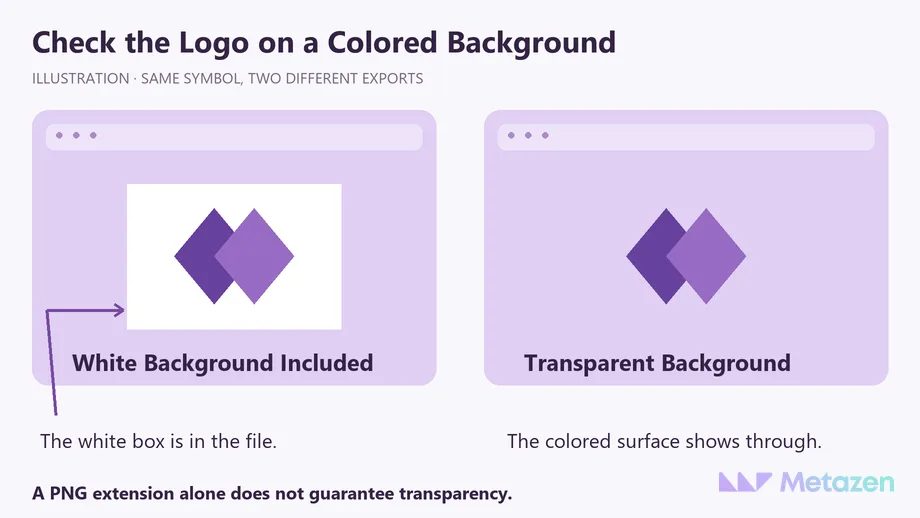
A JPEG may be useful for a preview or a placement with a fixed background. It cannot provide the transparency supported by PNG. Even a PNG can arrive with an opaque white background, so check the export on a colored surface.
Sending a logo to a print provider is different from supplying a finished brochure. If page size, bleed and proofing need to be planned, treat them as part of the print design project.
3. Compare the Color and Background Versions
Does any part of the colored logo disappear on a dark background? Are thin details clear in a single-color version? Does the horizontal layout fit the website header? Check the agreed full-color, black, white or alternative layouts. The required versions depend on your actual placements.
For example, a business using its logo on a website and in a slide deck should check light and dark backgrounds. If it plans a printed presentation folder, the provider’s color requirements belong in the handover notes. A filename containing “CMYK” cannot guarantee a printed match; output profiles and printing conditions affect the result.
Open the versions side by side before approval. An old symbol, previous typeface or incorrect color value is easier to catch before several teams start using the package.
4. Resolve Fonts, Linked Assets and Usage Notes
If the lettering changes when someone opens the logo on another computer, ask what is missing. Record the typeface name, whether the font is needed for editing and how the recipient can obtain it. Any linked images need a clear location. Adobe’s file packaging guidance explains how links and font information form part of a handover.
Copying a font file is not an automatic solution. Sharing depends on its license. For example, Adobe Fonts licensing distinguishes delivering finished artwork from transferring font files to a client. Check the terms for the font actually used.
A short usage note should answer everyday questions: which file goes on the website, which version works on a dark background, and who can clarify print requirements? A full brand guidelines document is a separate deliverable. If clear space or minimum size rules were agreed, include them in the notes supplied with the logo.
5. Try the Final Package Where It Will Be Used
Download the files from the delivery link rather than reviewing only the designer’s presentation. Place the web logo in a staging site or a suitable preview. Try it on light and dark slides. For print, have the receiving provider check the artwork. If something is wrong, send a screenshot showing the file, placement and specific problem.
Make the approved package easy for colleagues to use:
- Separate approved files from rejected concepts.
- Name files by brand, layout, color version and revision, such as brand-horizontal-rgb-approved-v1.svg.
- Keep source artwork, digital exports and print files in clearly named folders.
- List outstanding or excluded items with an owner and an agreed completion date where relevant.
The source document and everyday export do different jobs; exporting can discard editing data. Keep practical outputs easy to find and preserve the working artwork for later changes.
Let’s Prepare Your Logo for the Places It Needs to Work
At Metazen, we start handover discussions with the intended use of the logo. Our design team can help define the source artwork, digital exports and print applications your project needs. Explore our graphic design services to see how we can support a new logo or applications of your existing identity.

