
A Google Ads Search campaign connects a search, an ad and a destination page. The setup needs to preserve that connection: someone looking for a particular service should see a relevant offer and land on a page where they can act. An overlooked location or URL setting can send an otherwise sensible campaign in the wrong direction.
The seven steps below follow the standard Search campaign workflow in an existing account. Search campaigns use text ads to reach people looking for products or services. If your offer and keyword groups are still undecided, work through your Search campaign plan first, then enter those decisions in the interface.
About the screenshots: Captured from the English Google Ads interface on September 27, 2026. Account details were blurred and relevant areas cropped for readability. The demonstration uses Turkish ad copy in a Türkiye account; TRY amounts have not been converted into dollars. No campaign was published, and forecasts are not performance results. New-account onboarding and other accounts may show a different sequence.
What to Have Ready Before You Start
You need access to the intended advertising account, a working landing page, a clear offer and an agreed spending limit. For lead generation, check that the form works and that completed submissions are measured. A click on a contact button does not prove that a visitor sent an inquiry.
If you do not have an account, follow Google’s account setup instructions. You may be able to create the account without creating a campaign. Select the billing country, time zone and payment details for your own business. Values shown in someone else’s screenshot are not recommended account settings.
1. Choose Your Objective and Select Search
Open Create → Campaign. The objective screen offers Sales, Leads and Website traffic among its choices. Decide whether you want visits, inquiries or purchases before picking a label. For a service business that wants completed inquiry forms, Leads is a relevant starting point.
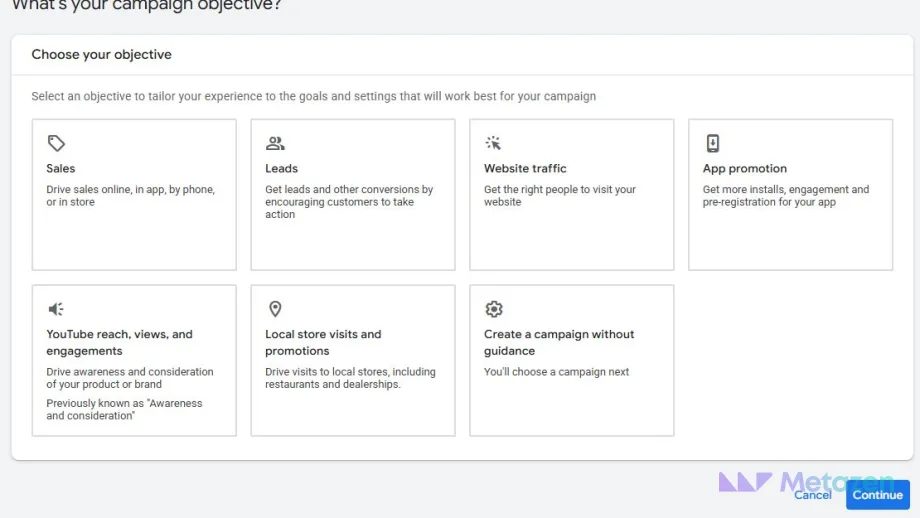
Read the conversion-goal table that appears. Account default means the goal comes from account settings; it does not prove that it belongs in your new campaign. Our screen showed Submit lead forms. Check the goal name and source against the action your business actually measures.
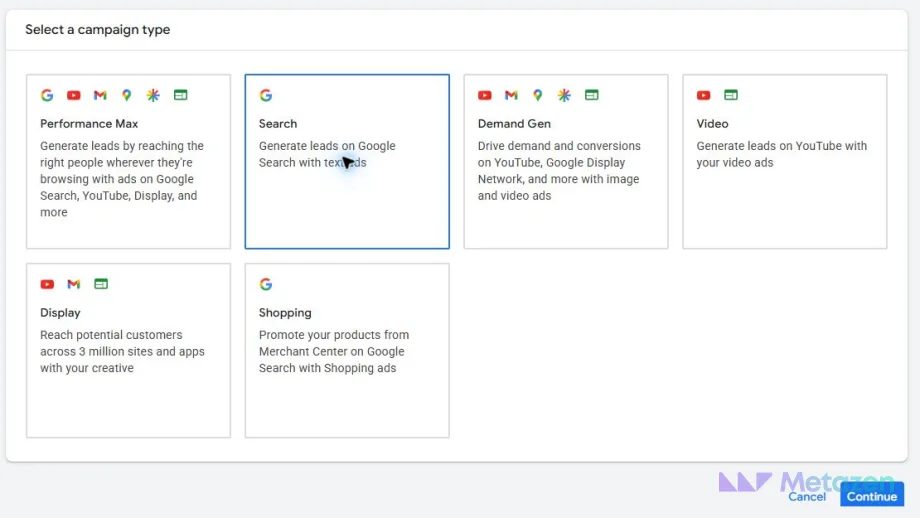
Select Search as the campaign type. Performance Max, Display and Video are different campaign choices, not alternate views of the same setup. To compare what each channel is used for, see how search, social and display ads differ. Give the campaign a name that identifies its service and target area. If Website visits reveals a website field, enter your business URL; you will check the ad’s destination again in the ad editor.
2. Match Bidding to the Outcome You Measure
The Bidding screen controls what Google’s bidding should work toward. The captured example shows Maximize conversions. A conversion is a measured action such as an inquiry or purchase; having that option selected does not mean tracking is ready.
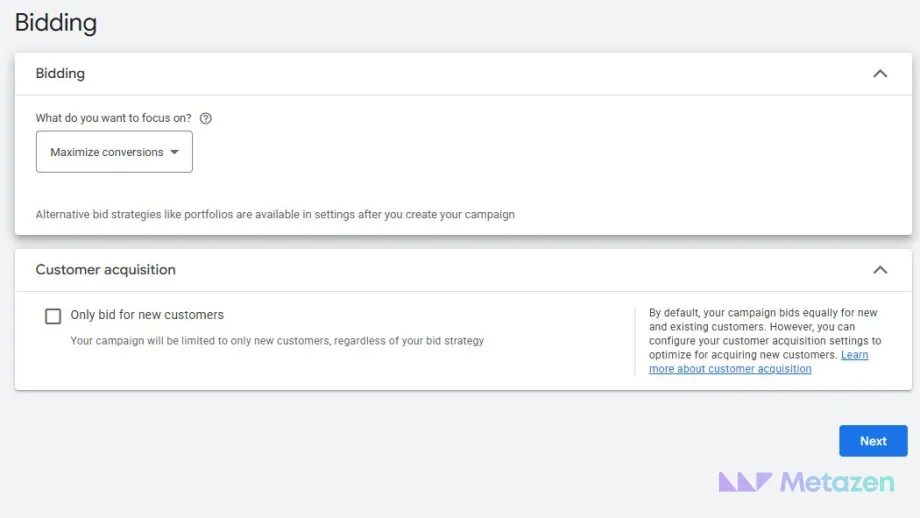
Consider conversion-focused bidding when the intended actions are being measured correctly. Maximize clicks works toward visits instead. Compare the purposes in Google’s bidding strategy table and select the option that fits your objective. A default selection is not a universal recommendation for new advertisers.
Only bid for new customers restricts bidding to new customers. If repeat customers matter to your business, do not restrict the campaign to new customers by default. Select Next when your bidding choice is settled.
3. Review Networks, Locations and Ad Language
Under Campaign settings, inspect Networks first. For the demonstration we cleared Google Search Partners Network and Google Display Network to keep the example focused on Google Search. Search partners can be useful; the point is to make a deliberate inventory choice. The Display option can extend delivery beyond search results.
Choose the country, city or area you actually serve under Locations. All countries and territories is an unsuitable default for a campaign intended for a single service area. Open Location options after choosing the area:
- Presence or interest: Can include people in the area and people who have shown interest in it.
- Presence: Focuses on people likely to be in, or regularly in, the area.
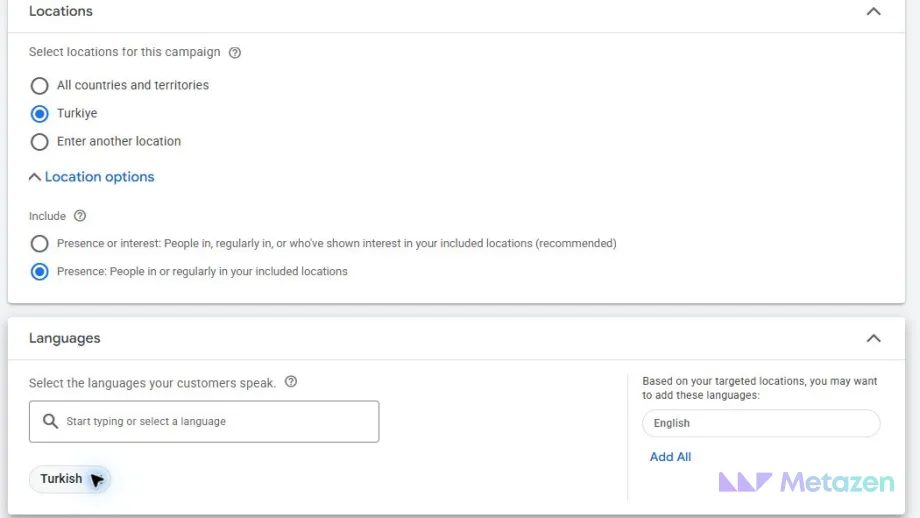
Presence may fit a business that only wants people in its service area. A hotel taking reservations from travelers elsewhere has a different requirement. Google’s location guidance explains the distinction and the limits of signal-based targeting; geographic accuracy is not guaranteed.
You may no longer see a Languages field. Google describes a transition starting in September 2026 that removes campaign-level language settings from Search campaigns. The field was still visible in the account we captured, with Turkish selected. If it is absent from yours, focus on the language of your ad and landing page instead of searching for the old control. See the current language targeting guidance.
An English interface does not require English ad copy. The interface language, the language your customers read and the country you target are separate choices. Our screenshot remains a Türkiye example, not a US campaign with relabeled settings.
4. Review AI Max and Enter Your Keywords
AI Max can be enabled when a new Search campaign opens. It is a set of features within Search, affecting search-term matching, text customization and final URL expansion. Read the Asset optimization controls as well as the main switch.
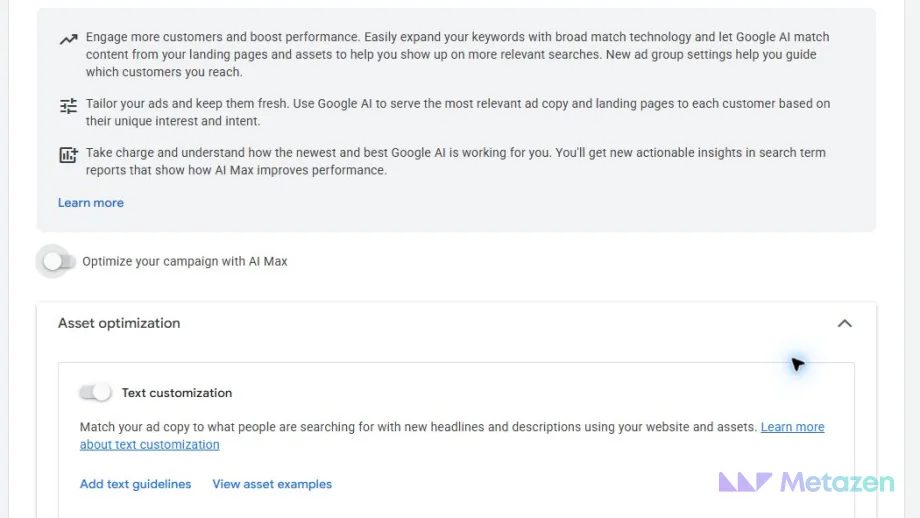
To demonstrate entering our own keywords, text and destination, we turned off the AI Max switch and chose Skip on Keyword and asset generation. If you use automation, understand which text or pages it may introduce using the AI Max setup guidance. Check the final summary against your intended choices before launch.
In Keywords and ads, place each keyword on a separate line in Enter keywords. The screenshot uses Turkish phrases for corporate website services. An English-language business could illustrate the same syntax with the following examples, after researching its own demand:
[business website design]
"company website design"
"website design services"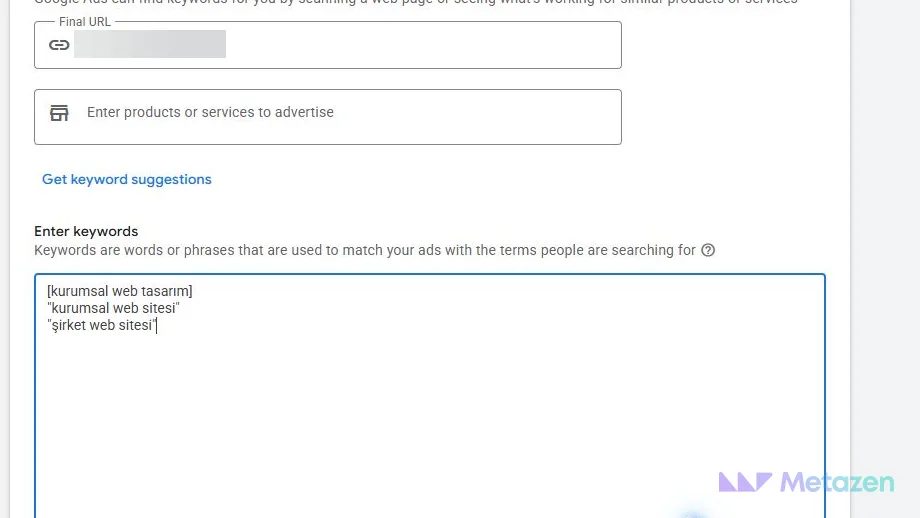
Exact match can match the same meaning or intent, rather than only an identical string of letters. Phrase match covers searches that include the keyword’s meaning. An entry without those symbols uses broad match. Consult Google’s keyword matching explanation for the boundaries.
Get keyword suggestions produces ideas; Apply all accepts them in bulk. Read suggestions before applying them. Someone looking for a job or a free template may not want the service you sell. Consider exclusions separately as negative keywords and keep unrelated services out of the same ad group.
5. Add the Destination, Ad Copy and Assets
The ad’s Final URL is the page that opens after a click. An ad for business website design needs a destination that answers that specific need, with a clear route to an inquiry. Display path fields help describe the visible address; they do not change the destination.
A responsive search ad combines the headlines and descriptions you supply into different ad presentations. Enter text under Headlines and Descriptions. The current responsive search ad limits are:
| Field | Input Limit | What to Check |
|---|---|---|
| Headline | 3–15 headlines; up to 30 characters each | Works alone and with the other headlines. |
| Description | 2–4 descriptions; up to 90 characters each | Explains the offer, conditions and next action. |
| Path | Two fields; up to 15 characters each | Describes the visible path, not the Final URL. |
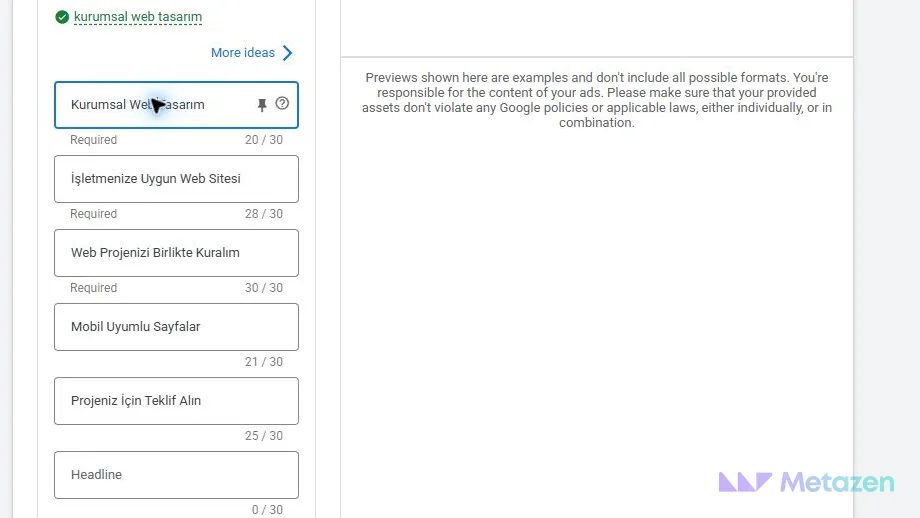
For English copy, compare the jobs performed by “Business Website Design,” “Built Around Your Services” and “Discuss Your Website Project.” One names the service, one develops the offer and one suggests a next action. They are illustrative alternatives, not translations inserted into the screenshot or tested winning ads.
A description might read: “Tell us what your website needs to do. Discuss the scope and next steps with our team.” Avoid delivery promises, discounts or results you cannot substantiate. Read combinations in Preview, remembering that it does not show every possible ad presentation.
Sitelinks point to relevant pages; Callouts provide short supporting details. Do not add a call asset simply to fill a field if phone inquiries are not part of your service. Use accurate information under Business name and Business logo. A watermarked blog illustration is not automatically a suitable advertising image; ad assets have their own format requirements.
Visit the landing page on your phone and follow the inquiry route. If the page is slow or unresponsive, investigate its performance rather than trying to compensate with more persuasive copy. Better headlines cannot repair a broken form.
6. Select a Budget Type and an Affordable Amount
On the Budget screen, you do not have to accept a recommended figure. Average daily budget describes the daily average; Set custom budget lets you choose an amount. The figures in the screenshot are account-specific suggestions, not minimum entry prices or Metazen spending recommendations.
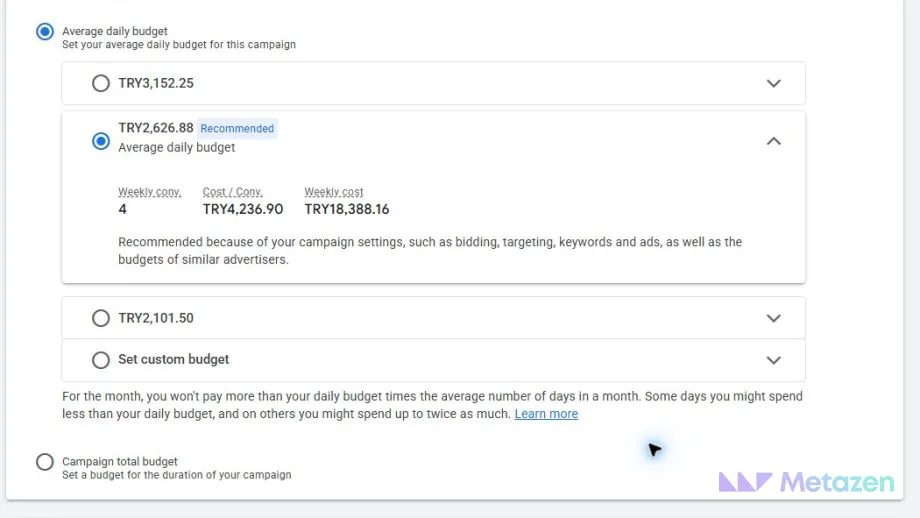
An average daily budget is not a strict daily cap. In a separate hypothetical example, an unchanged $10 average daily budget can allow up to $20 on some days, with a monthly limit of $304. That illustrates the spending rule, not whether $10 is enough for your market. Check Google’s daily budget explanation when setting or changing an amount.
If your account offers Campaign total budget, distinguish a budget for the whole period from a daily average. Review the start and end dates together. The captured screen says the budget type cannot change after the campaign starts, although the amount can. Settle that choice before publishing.
Weekly estimates are forecasts. A prediction of four conversions does not promise four qualified inquiries. Keep media spending separate from management, landing-page work and measurement costs when deciding what the campaign can afford.
7. Verify the Saved Setup and Check Delivery Status
On Review, read the final values rather than counting completed steps. Compare Locations, Networks, Bidding, Asset optimization, Keywords and ads, and Budget with the decisions you intended to apply.
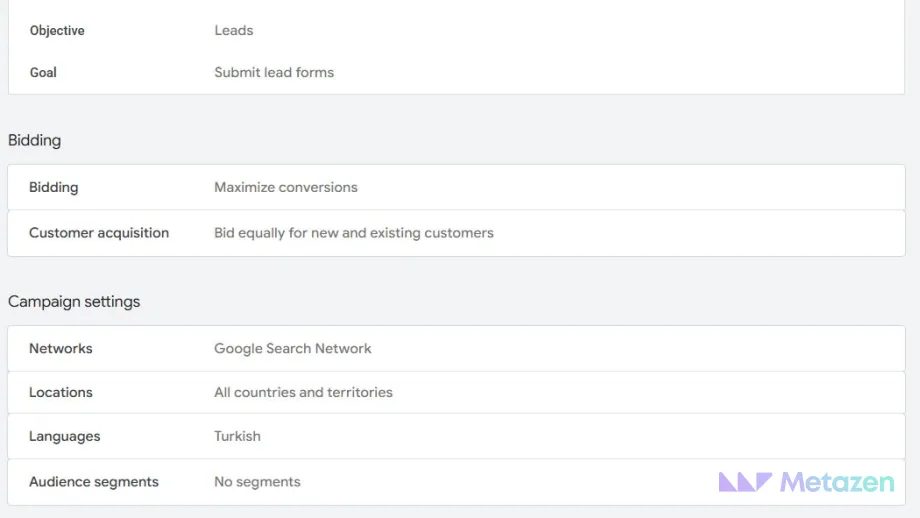
A selected value may not be the saved value. During the capture, Türkiye was selected on the location screen, but the review showed All countries and territories and the interface reported a save error. We did not publish the campaign. Resolve save errors or account-verification requests and read the summary again before proceeding.
- Do the location and networks match the intended reach?
- Does the Final URL open the right page?
- Does the conversion goal measure the action the business cares about?
- Have you checked the copy, assets and automation settings?
- Are the budget, currency and start date approved?
- Are there unresolved field, saving or billing warnings?
Once those checks pass in your account, the publish control activates the campaign workflow. That step can lead to real spending. We did not press it for the demonstration and do not present the screenshots as evidence of a successful launch or campaign results.
After launch, read the ad status. Under review means checks are in progress; Disapproved indicates a policy issue. Eligible does not mean the ad will appear in every search. According to Google’s review guidance, most reviews finish within one business day, though complex cases can take longer.
Let’s Prepare Your Search Campaign for Launch
If you want someone to review the campaign alongside its landing page and measurement setup, explore our Google Ads management service. At Metazen, we consider the journey from the offer a visitor reads to the inquiry they submit. You can meet the team before discussing the scope of support your project needs.
